1
Create a Project
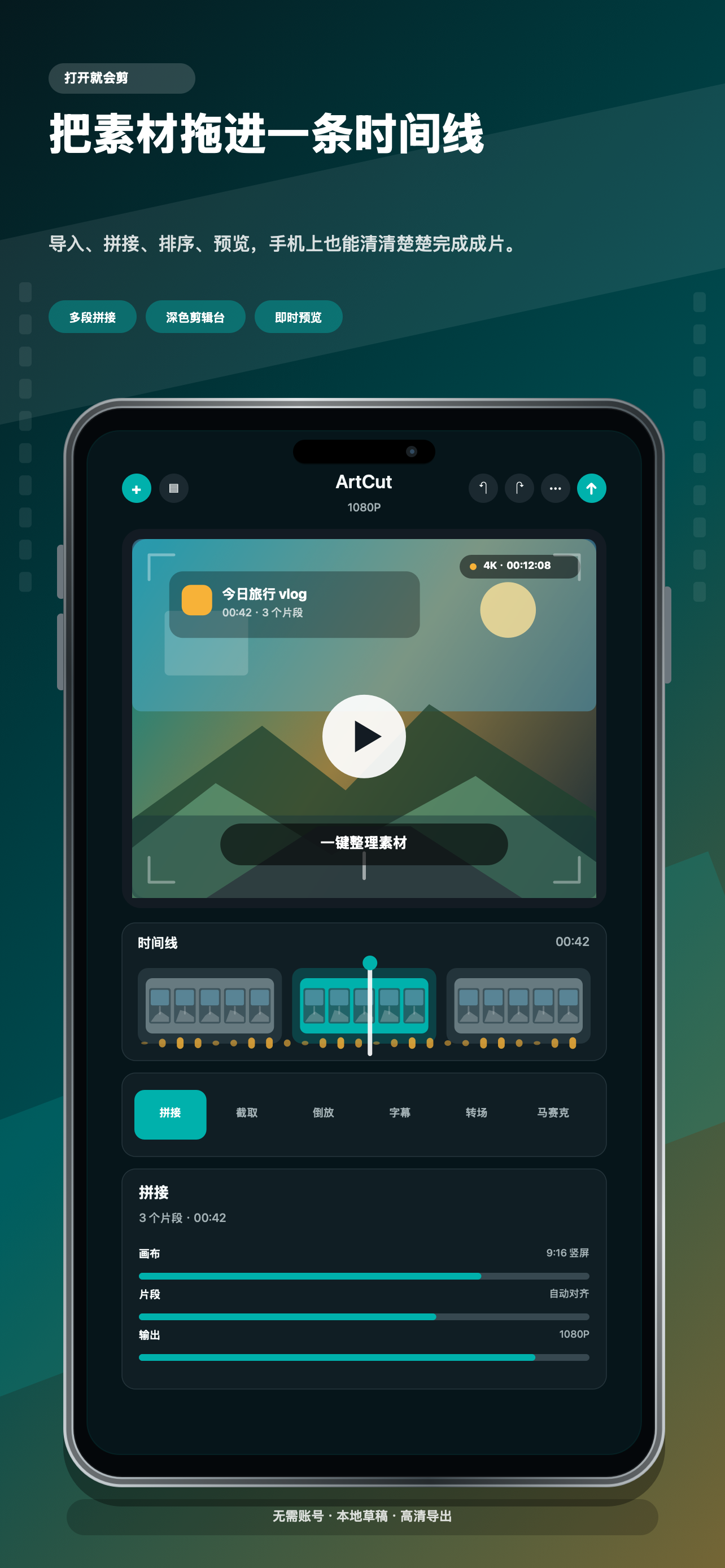
- Start a new project and import videos or images from Photos or Files.
- Grant Photos permission only when you want to import media or save exported videos.
- Drafts, generated renders, extracted audio, captions, and caches are stored on your device by default.
2
Edit the Timeline
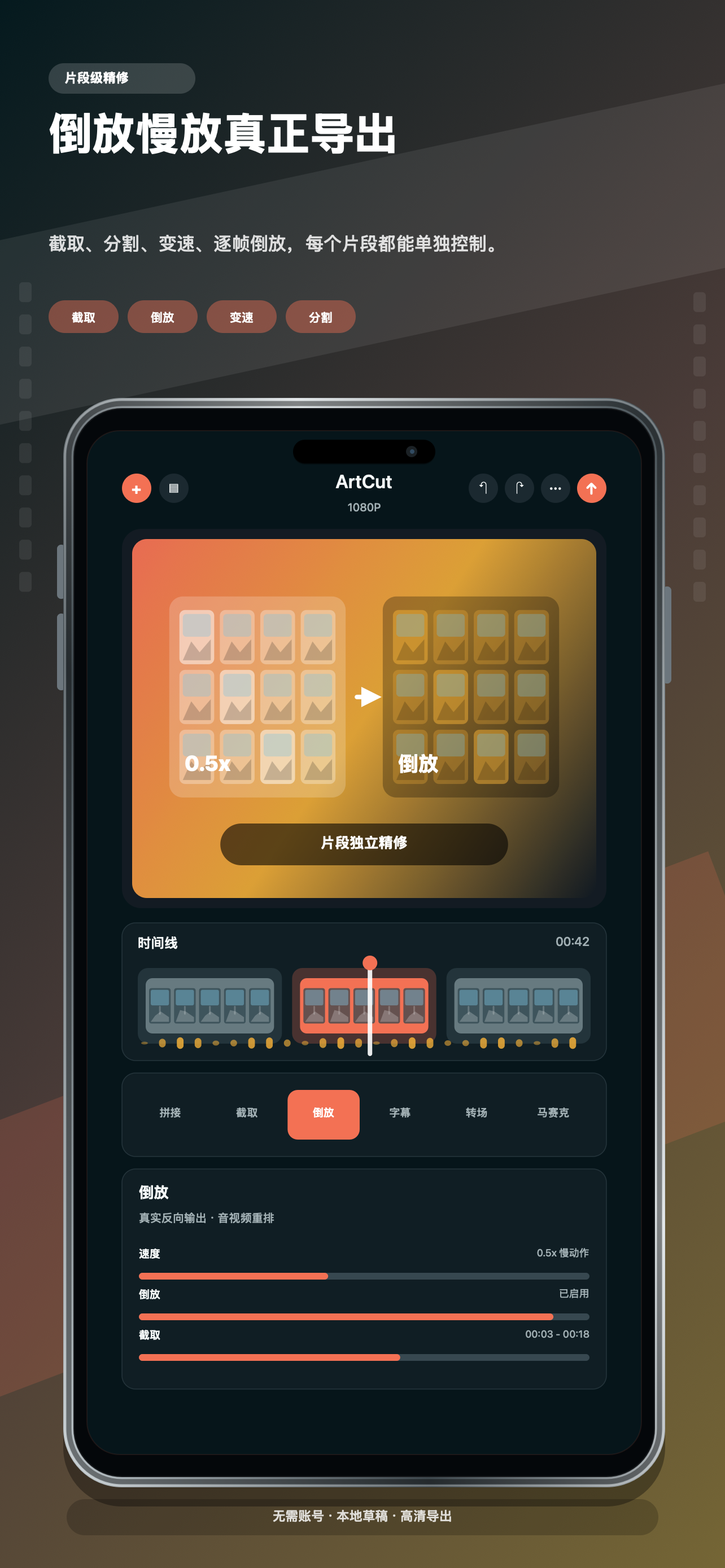
- Arrange clips in order, then trim, split, reverse, rotate, flip, crop, add borders, or change playback speed.
- Use transitions, picture-in-picture frames, stickers, titles, doodles, and mosaic areas to build the final composition.
- Preview edits before export, especially after speed changes, reverse clips, and overlays.
3
Captions, Audio, and Export
- Generate automatic captions only when you explicitly start caption creation; this uses Apple's speech recognition framework.
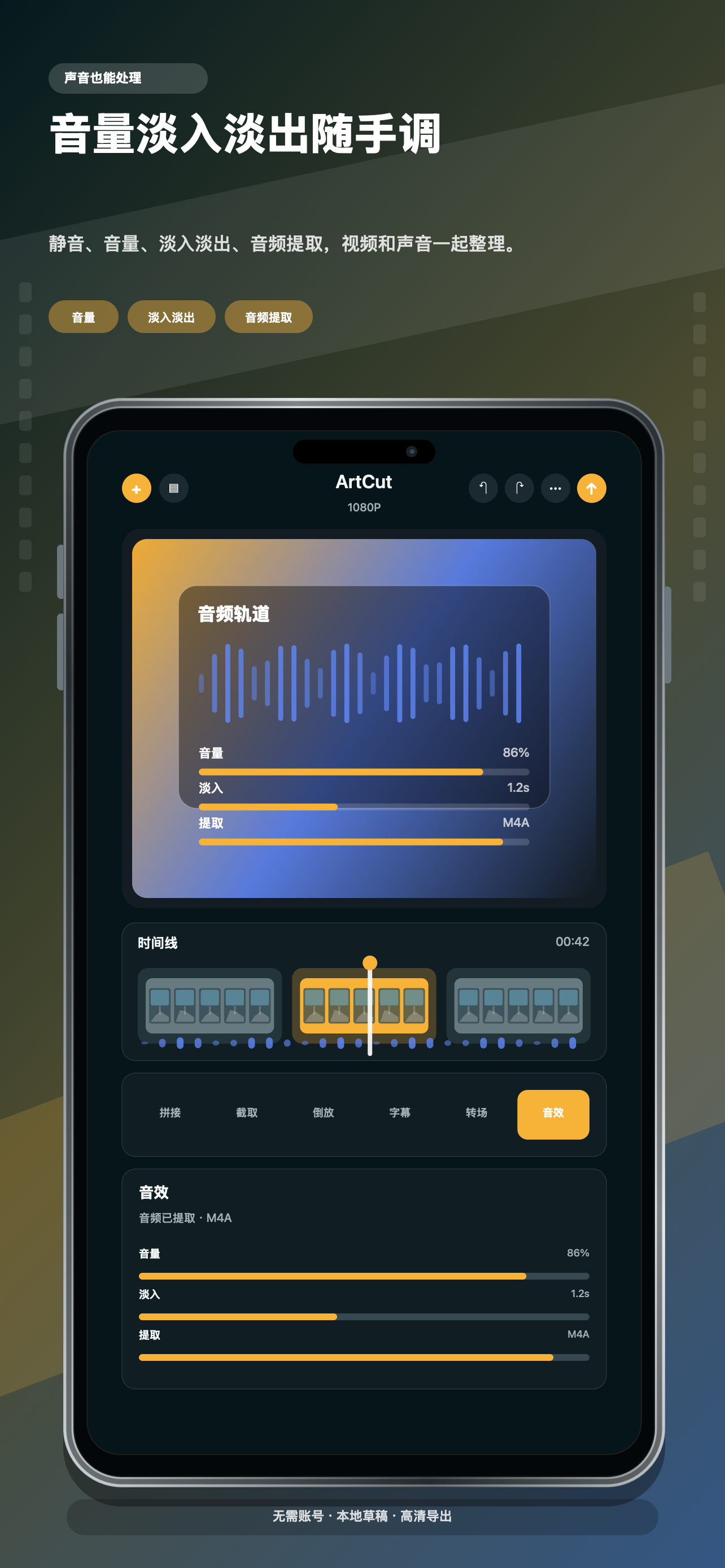
- Mute, adjust volume, add fades, extract audio, or combine background sound with original clips.
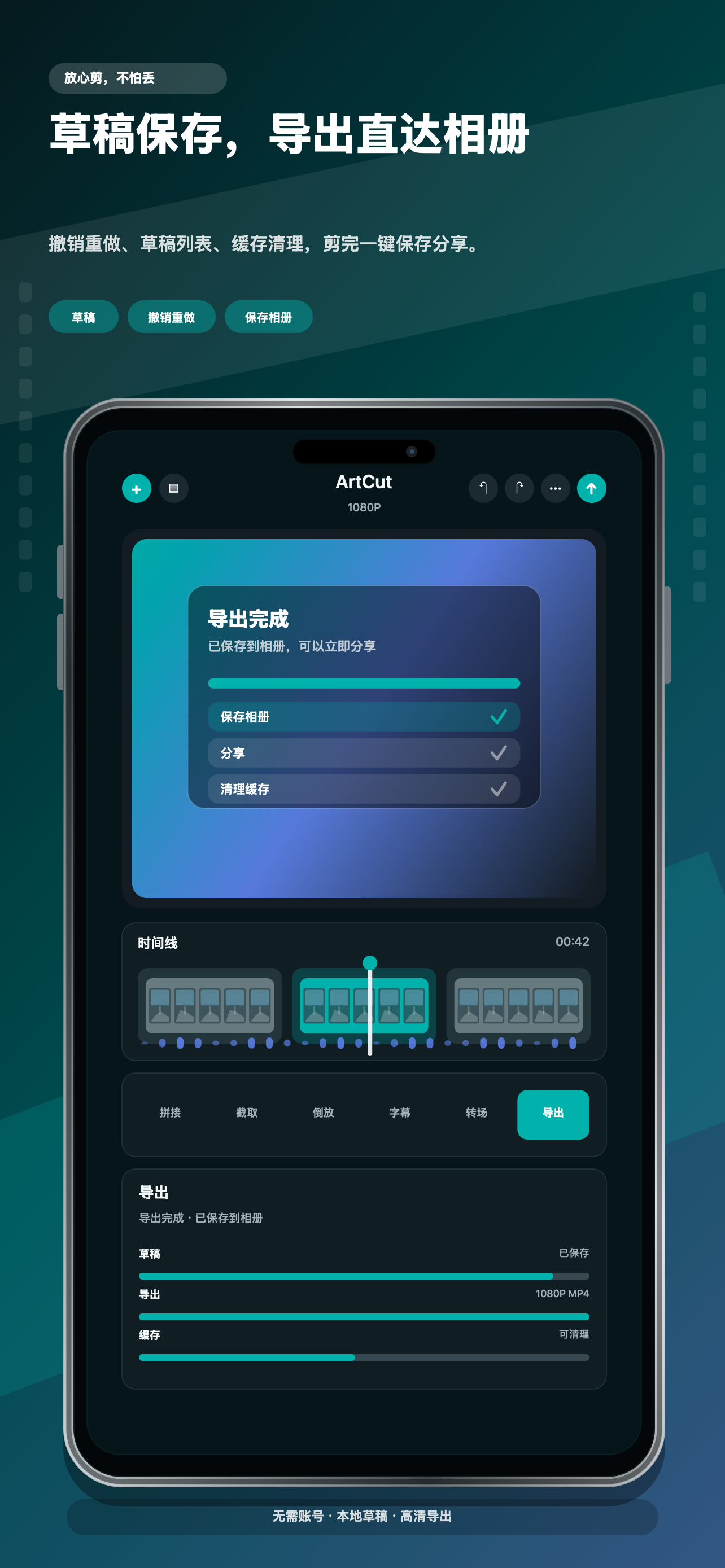
- Choose an export quality, wait for on-device rendering to finish, then save or share through Apple system services.
4
Storage and Versions
- Use cache cleanup tools to remove generated renders and temporary files when storage is tight.
- ArtCut Free can show Yandex/AdMob banner, native/feed, interstitial, and app-open ads around editing and export workflows after ATT status is resolved.
- ArtCut Paid is a paid download with no ads and does not initialize advertising SDKs. Future membership or premium template subscriptions should be checked in the submitted build before describing them as active.
For help, contact balamanigill@gmail.com.
Local media editing. Free edition uses Yandex Mobile Ads with Google/AdMob mediation after ATT status is resolved; paid edition is ad-free.